Set up my mailbox on Thunderbird
Set up your Ecomail mailbox on the open-source software Thunderbird.
The following tutorial is done on a MacBook with MacOS. The setup on Windows is pretty much the same.
Your browser does not support the video tag.
To check your Ecomail emails, you can of course use the web interface available at https://mail.ecomail.earth but you can also set up your email on a program like Thunderbird.
To set up Ecomail on Thunderbird, follow these steps:
Open Thunderbird
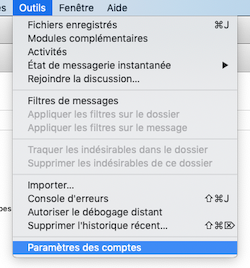
Go to "Tools" then "Account Settings"
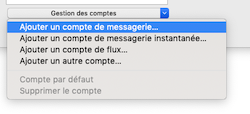
At the bottom of the page, click on "Account Actions" then "Add Mail Account"
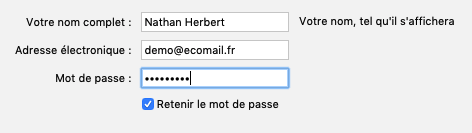
Fill out the form with your information. In the example, the Ecomail email box used is "demo@ecomail.fr".
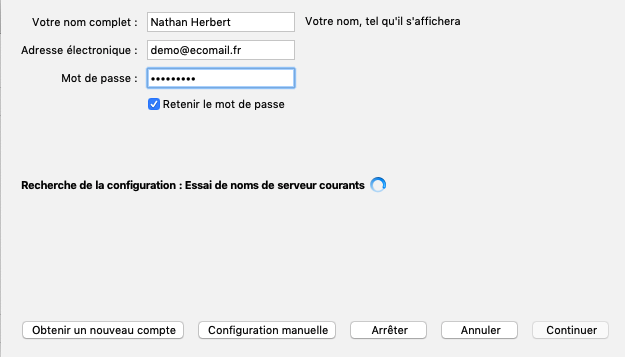
Click on "Continue". Thunderbird tries to find the configuration settings on its own, but it won't work. Click on "Manual configuration".
Fix the different fields to match the image, of course replacing demo@ecomail.fr with your own Ecomail address.
Incoming server:
IMAP server: imap-fr-par.ecomail.earth
Incoming server username: your full email box.
Port 993 Security: SSL/TLS
Outgoing server:
SMTP server: smtp-fr-par.ecomail.earth
Outgoing server login: your full email inbox.
Port: 587 SSL: STARTTLS
Authentication: normal password
Click on "Retest." Thunderbird validates. Click on "Done."
Your Ecomail inbox is now set up on Thunderbird. All that's left is to send and receive emails, and don't forget to delete the unnecessary ones!